
Do you currently send/receive your website emails through Gmail? If so, you really need to read this!
Google recently announced that starting January 2026, Gmail will no longer provide support for the following features:
- Gmailify: This feature allows you to get special features like spam protection or inbox organization applied to your third-party email account. Learn more about Gmailify.
- Check mail from other accounts: Fetching emails from third-party accounts into your Gmail account, with POP, will no longer be supported.
Learn more about this change, here: https://support.google.com/mail/answer/16604719?hl=en
I, and many of my clients send/receive emails via Gmail, and this means that you will no longer be able to do this. But it’s not all bad news – there is something you can do!
Check mail from other accounts
This feature is no longer available, and what is suggested is that you can:
- Set up automatic forwarding – I will explain how to do this in CPanel, in a moment. You can still send emails from Gmail and have it look like you have sent it from your website email address, so all good there!
- You can add your email account in the Gmail app (mobile) – this is because this uses a standard “IMAP connection” as opposed to a “POP connection”, which is what is being discontinued.
How to forward your emails to Gmail
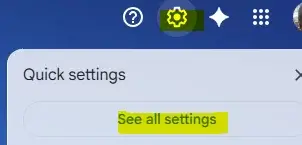
The first thing to do is check which email addresses are going to be affected. Click on the Gear icon at the top right of your screen in Gmail, then on See all settings.
Click on Accounts and Import
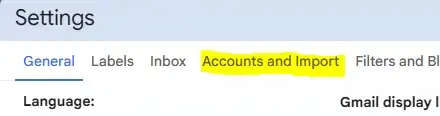
Here, you will see a list of all accounts (if any) that you are checking the emails for. If no email addresses are listed, you are all good! If not, we need to log into your CPanel (assuming your website has been set up that way – if you don’t know, check with your web person!).

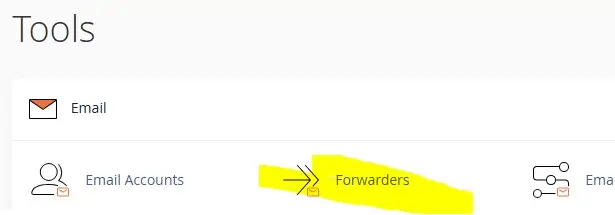
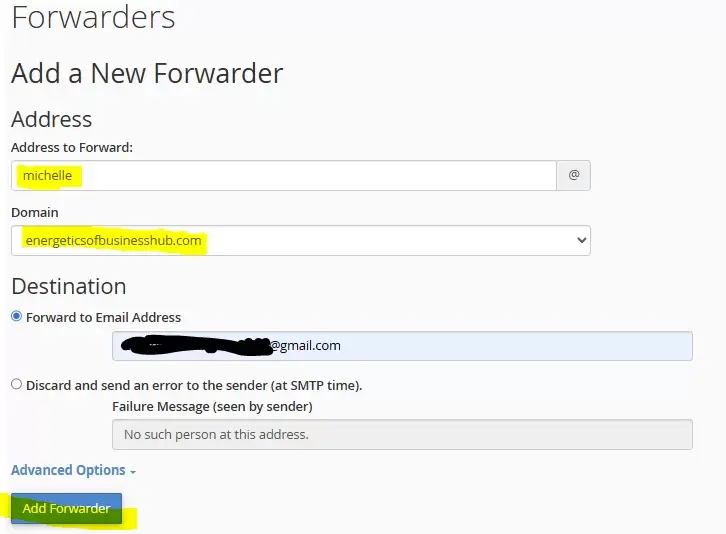
Visit your website’s CPanel (yourdomain.com/cpanel) and from the Tools menu, click on Forwarders.
Click on Add Forwarder.
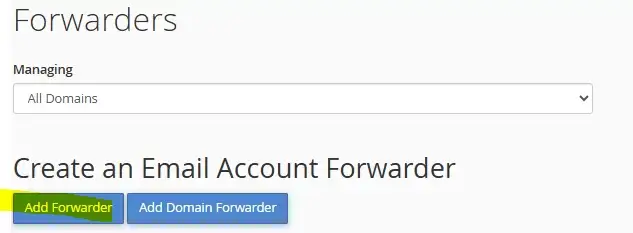
Enter the details of the website you would like to forward to your Gmail account. Click on Add Forwarder.
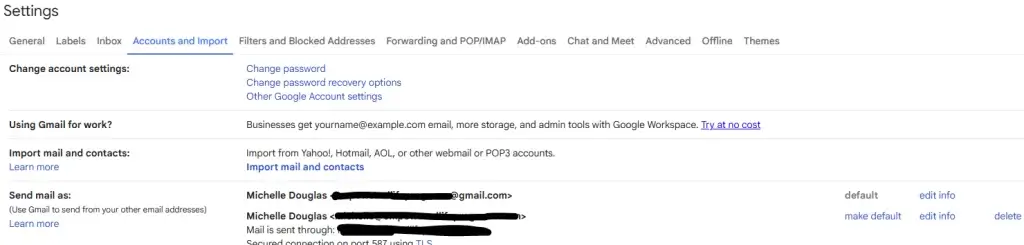
Send mail as
If you have not done so already, go back to your google settings, and go to the section called Send mail as.
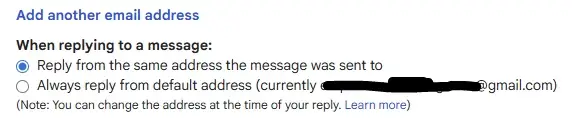
In that section you will see a heading titled “Add another email address”. Click on that and ensure “Reply from the same address the message was sent to” is ticked. This will open a new window.
Enter your email address that you wish to send emails from.
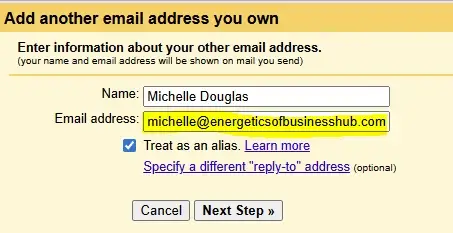
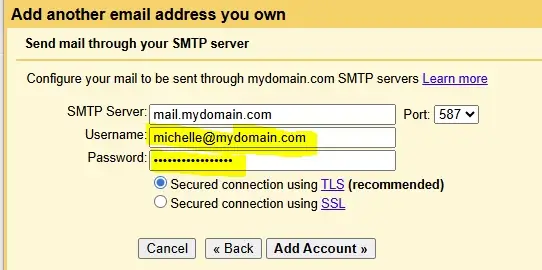
Your Username will be your full email address. Also enter your password and click Add Account.
You can send some test messages to make sure it has set up properly!